 +1 888 285 9583
 +33 4 12 39 27 40


Co-management, Cloud Attach, application repackaging, policy governance. Everything you need to know to migrate a Windows fleet to Intune without losing your policies.
Why migrate from SCCM to Intune in 2026
System Center Configuration Manager (SCCM, later MEMCM and then Configuration Manager) is still the backbone of Windows endpoint management in most large Quebec organizations. It works, it's mature, it knows everything. So why migrate?
There are three solid reasons in 2026: most work now happens off the corporate network (remote work, mobility), yet SCCM is built for devices connected to the LAN; Microsoft's newer security mechanisms (Defender for Endpoint, Conditional Access, Zero Trust) are natively orchestrated through Intune; and rolling out Windows 11 with Autopilot is dramatically simpler through Intune.
But migrating doesn't mean "tear everything down and rebuild from scratch." Microsoft designed two mechanisms - Cloud Attach and Co-management - precisely to enable a gradual transition, one workload at a time.
The three possible approaches
Depending on your maturity and your constraints, there are three possible paths:
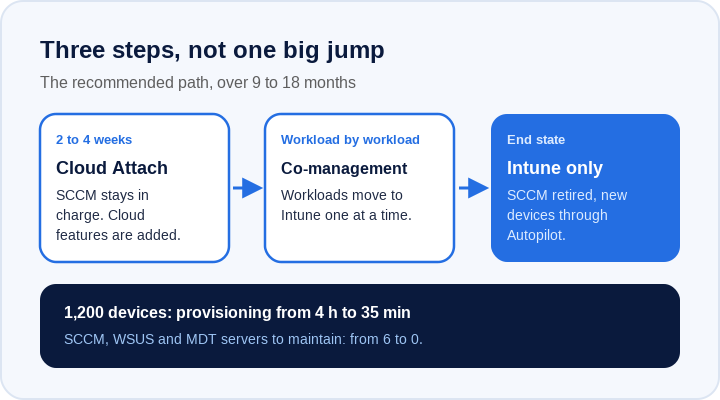
- Cloud Attach (fast, low risk): SCCM stays in charge of everything; you simply attach the Microsoft Entra ID tenant to gain cloud capabilities (Endpoint Analytics, Conditional Access based on SCCM compliance). No operational changes.
- Co-management (the preferred route): SCCM and Intune manage devices jointly, and you shift workloads from SCCM to Intune one at a time. During the transition, Intune takes authority over each workload you move.
- Intune Full Cloud (the end state): every workload is managed by Intune and SCCM is decommissioned. New devices are provisioned through Windows Autopilot and never touch SCCM.
- Our default recommendation: Cloud Attach → gradual Co-management → Intune Full Cloud, over 9 to 18 months depending on size and complexity.
Phase 1 - Cloud Attach (2 to 4 weeks)
Cloud Attach is the simplest step: you connect the SCCM site to the Microsoft Entra ID tenant and turn on co-existence. Nothing changes on the devices - they keep receiving their policies from SCCM.
Immediate benefits: Endpoint Analytics (visibility into fleet health), Tenant Attach (you can see your devices in the Intune console without them being managed there), and the ability to trigger Intune actions on SCCM-managed devices.
Technical prerequisites: Configuration Manager Current Branch version 2002 at minimum for Tenant Attach (we recommend the latest supported version, 2509 or newer). Devices are joined to Microsoft Entra, either hybrid joined or Entra joined only. The Cloud Management Gateway remains optional.
Phase 2 - Co-management, workload by workload
Once Cloud Attach is in place, you start shifting workloads. Microsoft lists seven workloads; since Configuration Manager 2403, resource access (Wi-Fi, VPN, certificates) is part of device configuration, which leaves six switches to plan:
- Compliance policies (usually migrated first - low risk, with an immediate Conditional Access payoff).
- Device configuration (BitLocker policies, Edge configuration, Defender, and so on).
- Endpoint protection (Defender for Endpoint, antivirus).
- Wi-Fi, VPN and certificate profiles: managed by Intune through the Device configuration workload.
- Windows Update policies (Windows Update client policies, formerly Windows Update for Business → retire on-prem WSUS).
- Office Click-to-Run apps (Microsoft 365 Apps deployment through Intune).
- Client apps (the most complex - Win32 app repackaging).
- Recommended approach: one workload every 2 to 4 weeks, with a pilot on 50 to 100 devices before the broad rollout. Save the complex workloads (client apps) for last.
Phase 3 - Application repackaging
This is where the migration slows down the most. SCCM has relied on .msi packages and custom applications for 15 years. Intune uses a different format: the Win32 app (.intunewin), created with the Microsoft Win32 Content Prep tool.
Our method: extract the SCCM application inventory (often 200 to 800 applications in a large organization), rank by how heavily each is used (how many devices have it installed), repackage the top 80 applications by usage (covering 95% of users), retire obsolete applications, and handle the long tail for the rest.
For complex applications (Adobe Creative Cloud, AutoCAD, in-house line-of-business apps), we use PSAppDeployToolkit (PSADT), which remains the go-to tool - it works just as well under Intune as it does under SCCM.
Intune governance: the classic pitfalls
Intune is not SCCM. Operational habits have to evolve:
- No boundaries: Intune runs over the internet, not the LAN. Rethink large-scale distributions (a 4 GB patch × 5,000 devices at once does not behave the same way on the network).
- No dynamic collections built from SQL queries: you use dynamic Entra ID groups with a different syntax. Plan a training session for your SCCM operators.
- A declarative model: Intune doesn't push, it declares the desired state. The device pulls its policy at the next check-in (about every 8 hours); the Sync action in the Intune admin center triggers an immediate update when needed.
- Reporting is less rich out of the box: Endpoint Analytics plus the Power BI Intune Data Warehouse partly close the gap, but they need to be set up.
- Rolling back: a switched workload can return to Configuration Manager, but some effects remain (Windows and Office versions already upgraded). Always validate with a broad pilot before the full rollout.
Example: 1,200 devices migrated in 9 months
Illustrative Intune migration example: a large Quebec firm with 1,200 users (professional services, SCCM infrastructure in place since 2014).
Timeline: 1 month for Cloud Attach plus Endpoint Analytics. 2 months piloting co-management on 80 IT and power-user devices. 4 months gradually shifting the workloads. 2 months wrapping up: decommissioning WSUS, repackaging the final 60 applications, and training Tier 1 support.
Result at 12 months: Intune Full Cloud on every device, SCCM decommissioned, and Autopilot operational for all new devices (zero-touch deployment). Time to provision a new device dropped from 4 hours to 35 minutes. The number of SCCM/WSUS/MDT servers to maintain went from 6 to 0.
Moving to Intune is part of our Microsoft 365 and Azure migrations, alongside tenant, Exchange and server migrations.
Sources
Want to talk it through?
Let's spend 30 minutes on your situation.
A free assessment with the io4 team. No commitment, no pressure.
Book my assessment